Intune is ending CNAME auto-discovery: What's changing for Windows MDM-only enrollment
CNAME auto-discovery for Windows MDM-only enrollment ends in January 2027. How it works today and what you need to update in your onboarding process.
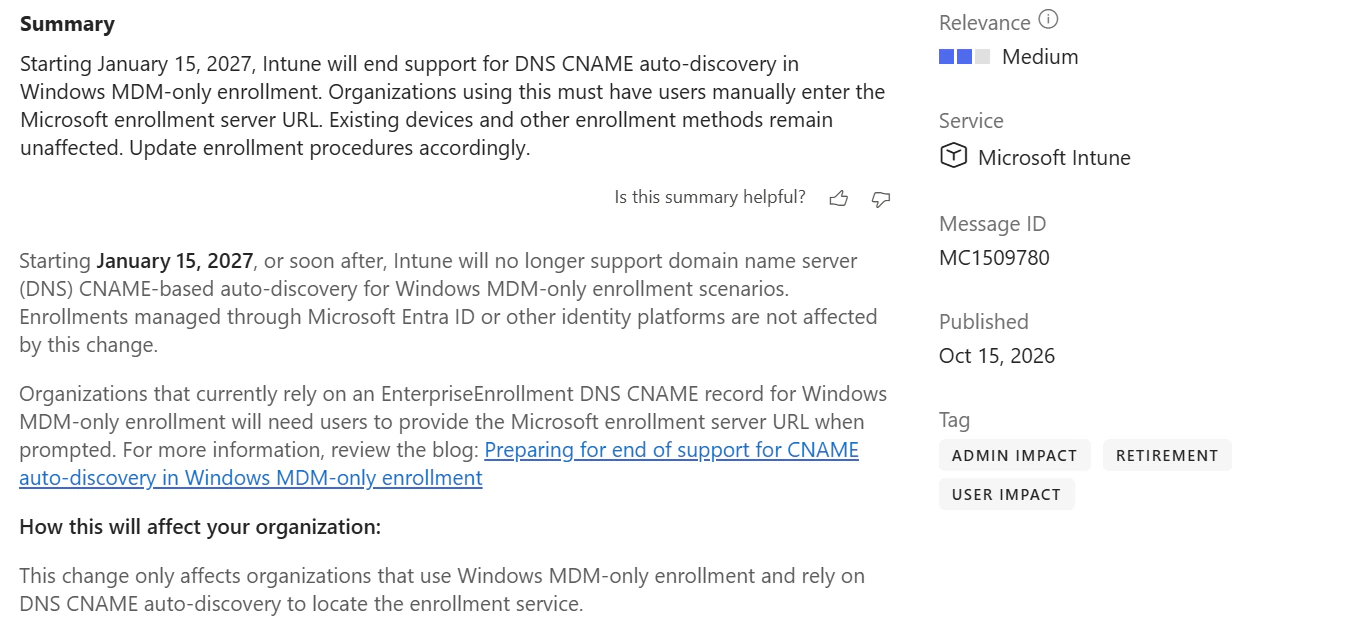
From 15 January 2027, or shortly after, Microsoft Intune will no longer support DNS CNAME-based auto-discovery for Windows MDM-only enrollment. If your onboarding process uses this mechanism, your users will need to enter the enrollment server address themselves, unless the enrollment process already supplies it.
Devices that are already enrolled are unaffected. MDM-only enrollment itself also remains supported. What you need to check is how your devices find the Intune service during enrollment. That is the part covered by Message Center notice MC1509780, published on 15 October 2026. Microsoft announcement
What Windows MDM-only enrollment actually does
To understand the impact, it helps to separate three things: device management, enrollment and discovery.
MDM stands for Mobile Device Management. Despite the name, that includes managing Windows PCs. Intune lets you apply settings and security policies to devices, for example. Before that can happen, the device needs to be brought into management. That process is called enrollment.
Discovery happens before that: Windows needs to find out which enrollment service to contact. The remaining steps, including sign-in and enrollment into device management, follow afterwards.
With MDM-only enrollment, you specifically establish this management connection. You can start it in Windows Settings under Accounts → Access work or school → Enroll only in device management. You enter your work email address and go through the enrollment process.
This step does not itself perform a Microsoft Entra join or Microsoft Entra registration. It can therefore bring a device into management without linking its device identity to Entra ID through the same process. Whether the device already has an identity relationship with Entra ID is a separate question.
That also explains the difference from the usual automatic enrollment: in that case, enrollment into Intune can happen automatically when the device joins or registers with Entra ID. MDM-only is a separate enrollment path. Microsoft does not recommend this path for personal or BYOD devices, although it remains supported.
Automatic enrollment requires Entra ID P1
If you want Windows devices to enroll into Intune automatically during Entra join or Entra registration, licensing is part of the setup: automatic MDM enrollment requires an Intune licence and at least Microsoft Entra ID P1. Entra ID P2 also meets the requirement. Microsoft lists both requirements in the automatic enrollment prerequisites.
Important
Entra ID P1 is required for automatic MDM enrollment. The end of CNAME auto-discovery does not introduce a new P1 requirement for manual MDM-only enrollment. That path remains supported using the specified server URL. The announced change concerns server discovery.
If you use this change as a reason to move from MDM-only to automatic enrollment, check your existing licences first. Entra ID P1 does not replace the Intune licence. You still need an appropriate Intune licence for device management.
How CNAME auto-discovery worked
The CNAME has made finding the right server easier. A CNAME is a DNS alias: one name points to another hostname. For Intune, that could look like this:
| Your organisation’s DNS name | Type | Target |
|---|---|---|
EnterpriseEnrollment.contoso.com | CNAME | EnterpriseEnrollment-s.manage.microsoft.com |
When a user enters alex@contoso.com during enrollment, the domain provides the basis for the matching discovery name. Windows follows the configured alias to find the Microsoft service. The user does not need to know its technical address.
The practical benefit was straightforward: enter your email address, sign in and continue enrollment. IT maintained the DNS record and users avoided an extra prompt for a server address.
The CNAME itself did not store credentials or enroll the device into Intune on its own. It helped Windows find the right starting point. Authentication and enrollment were still separate steps.
Why Microsoft is ending support
Microsoft says the retirement is intended to simplify and modernise enrollment. More specifically, it aims to reduce reliance on DNS-based discovery and make the enrollment experience more consistent. That is the official reason given.
From a technical point of view, the direction makes sense: if the server information is supplied directly by the enrollment process or entered explicitly, this step no longer depends on an organisation-specific discovery record.
For users, though, it may initially mean an extra step. Someone who previously only had to enter an email address may now see a server prompt. That is why this change needs to go into your onboarding instructions in good time. A missing URL should not turn into a helpdesk ticket during setup.
Check whether your enrollment workflow is affected
Your actual enrollment workflow determines whether you are affected. An existing EnterpriseEnrollment record alone does not answer that question. It may still be in DNS even though your devices have been using other enrollment paths for some time.
| Your scenario | Impact of this change |
|---|---|
| Windows MDM-only enrollment uses the CNAME to discover the server | Affected: the server information will need to come from another source. |
| MDM-only enrollment already receives the server URL directly | No extra manual entry is needed, provided the process continues to supply the URL. |
| A device is already successfully enrolled into Intune | The existing enrollment is unaffected. |
| Enrollment takes place through Microsoft Entra ID | Unaffected according to the announcement. |
For the usual Windows Autopilot setup with Entra integration and automatic MDM enrollment, this announcement does not introduce an extra step to enter the server address manually either. Automatic enrollment uses the configured MDM integration and is used by Autopilot, among other methods.
Still, check your exceptions. If your regular deployment runs through Autopilot but the helpdesk uses separate MDM-only enrollment instructions when something goes wrong, those instructions belong in the review. What matters is the path being used in each case.
The server URL your users will need
For affected users, the change comes down to this: if Windows asks for the enrollment server, enter the full URL specified by Microsoft:
https://enrollment.manage.microsoft.com/enrollmentserver/discovery.svc
Enrollment can then continue. If your enrollment process already supplies this information, there is no need to enter it manually.
The URL goes into the MDM Server URL field in the enrollment dialog. Make it easy to copy directly from your instructions.
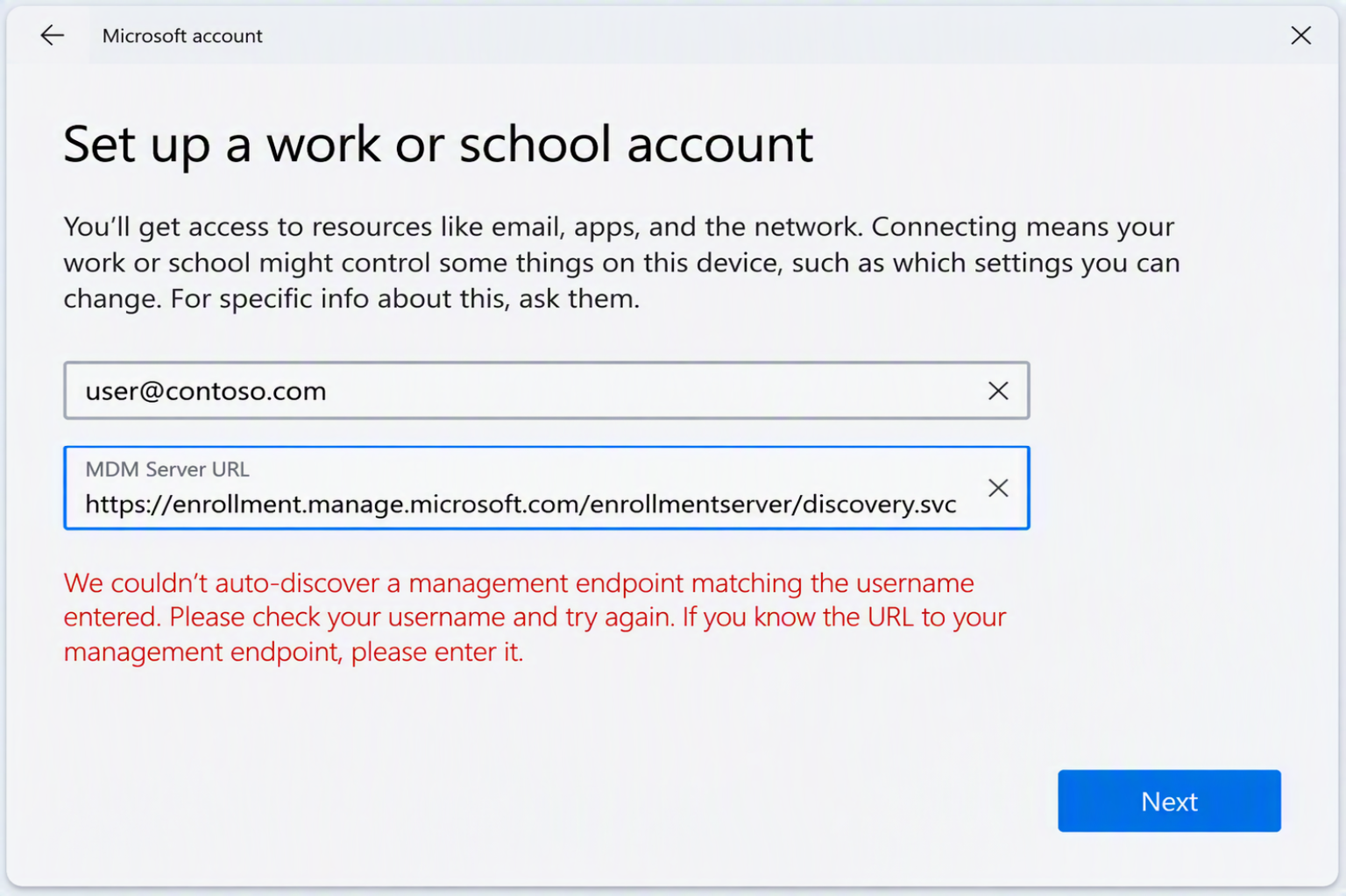
This is what the extra server prompt can look like: enter the full enrollment URL in MDM Server URL and select Next to continue enrollment. Click the screenshot to open it at full size.
How to prepare your onboarding process
These are the steps I would plan for:
-
Check the enrollment paths you actually use.
Look at regular onboarding and the manual helpdesk instructions. Specifically look for the “Enroll only in device management” entry point and any process that assumes automatic server discovery. -
Compare the workflow with your DNS configuration.
Check whether the relevantEnterpriseEnrollmentCNAMEs exist and whether your MDM-only processes depend on them. Include any other sign-in domains or UPN suffixes you use. -
Update the affected instructions.
Add the full enrollment URL, the relevant dialog and the next step. Also check knowledge base articles, provisioning documentation and the material used by external deployment teams. -
Prepare the helpdesk.
The support team should recognise the extra server prompt and have the correct URL ready. If a user gets stuck there, the team can help them continue from that point. -
Test the process with a suitable test device.
Go through the affected enrollment path from start to finish. Check where the server information comes from and whether enrollment can be completed successfully using your updated instructions.
This preparation should be finished before 15 January 2027. “Or shortly after” is not a useful buffer for your planning.
What this means for your DNS records
The announcement is not a blanket instruction to delete DNS records. Microsoft explicitly asks you to review the requirements of your own environment. Whether an existing EnterpriseEnrollment record is still needed should therefore depend on how it is actually used.
Pay attention to the similarly named records: EnterpriseRegistration serves a different purpose and is part of Entra device registration. Do not mix up the two during a DNS cleanup.
Remember to test re-enrollment too
Include re-enrollment in your testing if it is part of your workflow. A device that is already managed today is unaffected in its current state. If it is reset later and enrolled again through the affected MDM-only path, server discovery needs to work again.
A successful sync on an existing device does not confirm that your future onboarding is ready. The useful check is a complete enrollment run using the instructions your users will actually follow after the change.