Intune, SCEP and ClearPass: understanding EAP-TLS and device authorisation
How EAP-TLS works with Intune and ClearPass: device identity, Entra groups, attribute mapping, root CAs and WPA3-Enterprise.
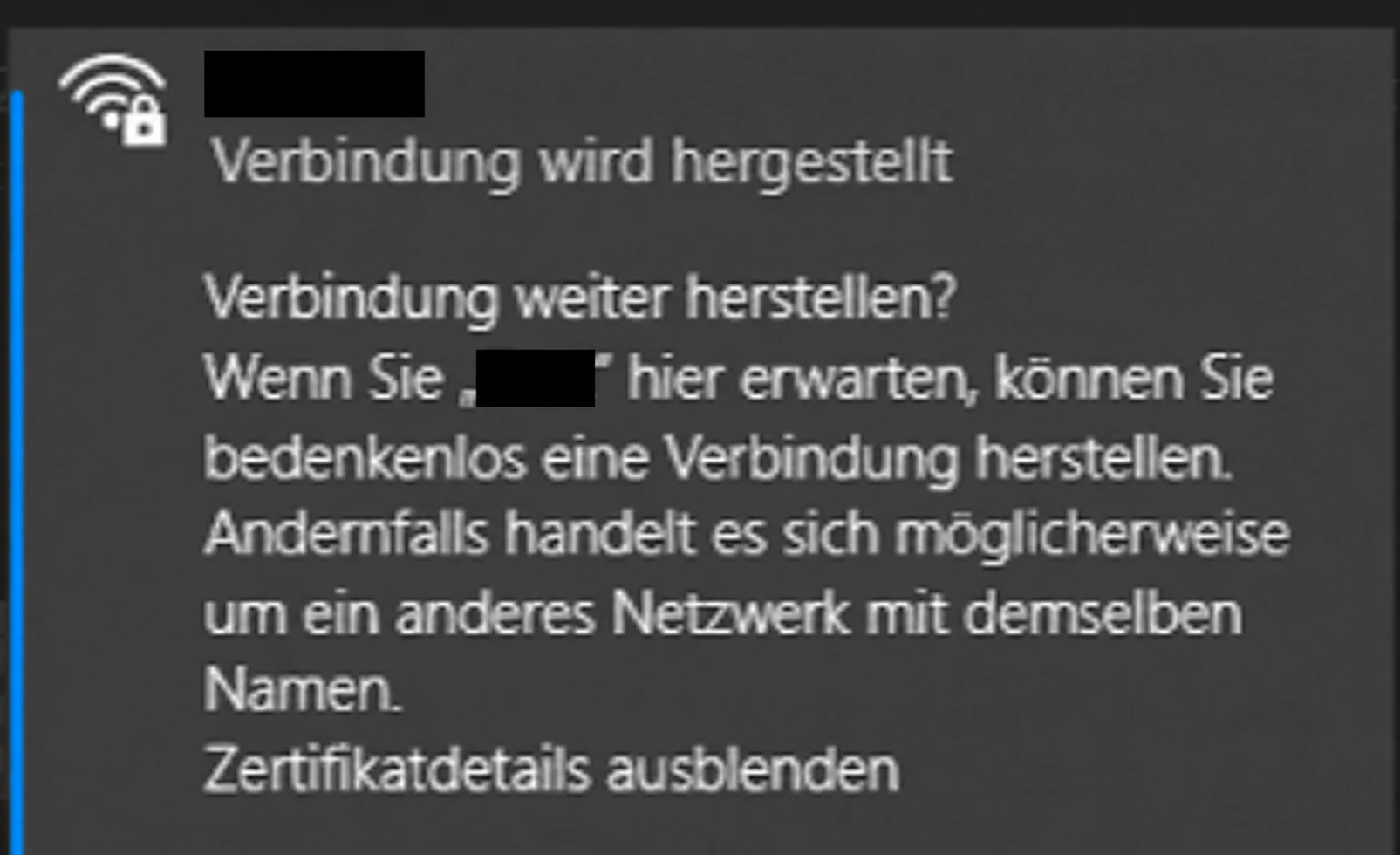
Having a device certificate does not guarantee Wi-Fi access. For a connection to succeed, certificate authentication, device authorisation and server trust all need to line up. With WPA3, the requirements of the selected security mode come into play as well.
The setup below uses Windows devices, Intune SCEP certificates, ClearPass and Entra device groups.
Checking the certificate and allowing network access
EAP-TLS verifies identities using certificates. ClearPass then uses its rules to decide which network permissions the connection receives.
That means both of these can be true:
- The client certificate is accepted.
- The intended access rule still does not apply because required group attributes are missing or referenced incorrectly.
Successful EAP-TLS authentication does not automatically mean successful authorisation.
In Access Tracker, you need to look at the authentication result, the returned authorisation attributes and the applied enforcement profile together. A default reject on its own does not explain the cause.
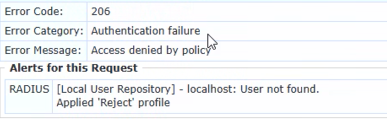
The original error in Access Tracker: error 206 with a reject profile. This excerpt alone does not explain which check is preventing access.
The certificate identity must match the device object
To grant device access based on group membership, ClearPass needs to find the correct Entra device object.
There are three identifiers to distinguish:
| Identifier | Meaning |
|---|---|
| Intune device ID | Identifies the managed device within Intune |
Entra deviceId | Device identifier in Entra ID |
Entra object id | Object identifier of the Entra directory object |
In this setup, the client certificate contains the Entra device ID. The ClearPass query must read that exact identity from the issued certificate and use it to find the corresponding Entra device object.
Note
What matters is the actual certificate content on the client. The Intune profile configuration alone is not enough to verify this. The Microsoft documentation explains the identity settings in the SCEP profile.
You cannot reuse an existing user query unchanged for this: user groups and device groups belong to different directory objects. HPE describes the two queries separately in its documentation for the Entra ID authorisation source.


The user query and its mapping. Device authorisation needs the device object and its group memberships instead.
The query, mapping and policy need to work together
ClearPass makes the queried information available through configured aliases. For example:
| Response field | Alias |
|---|---|
device.deviceId | EntraDeviceID |
device.displayName | DeviceName |
deviceGroups.displayName | DeviceGroups |

Device mapping with aliases for the device ID, device name and device groups.
The enforcement rule then needs to use the alias that is actually returned:
Authorization:Entra-Devices:DeviceGroups
    CONTAINS WLAN-Windows
These names are examples. Adjust them to match your own configuration.
If existing rules still request user attributes such as Groups or AccountEnabled, you may see messages like these:
Can't get ordered filters for attributes
Failed to get value for attributes=AccountEnabled, Groups
This does not necessarily mean a group membership is missing. ClearPass may be unable to match the requested attributes to a suitable filter in the first place.
After changing the authorisation source, you also need to check the references to it. An account status check must not be replaced with a group condition without reviewing the implications.
Server trust in the Intune Wi-Fi profile
Alongside the client certificate check, Windows needs to trust the RADIUS server certificate.
Important
In this setup, the subordinate CA was initially selected under Root certificates for server validation. The connection worked after selecting the trusted certificate profile containing the correct root CA.
This setting applies to the trust chain of the RADIUS server certificate. It is separate from the issuing CA of the SCEP client certificate.
Any configured Certificate server names must also match the expected server identity. Certificate validation stays enabled; the change corrects the trust anchor. Microsoft describes these settings in its documentation for Windows Wi-Fi profiles in Intune.
WPA3-Enterprise: the specific mode matters
WPA3-Enterprise with CCM 128 and WPA3-Enterprise with CNSA place different requirements on the components involved.
In this setup, WPA3-Enterprise with CCM 128 worked. The CNSA configuration selected initially had additional certificate and cryptographic requirements that the existing RSA-2048 device certificate did not meet. The HPE documentation for WPA3-Enterprise explains the differences.
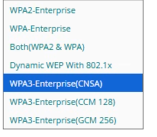
The menu shows the available variants. The original CNSA setting is still selected here. The successful test that followed used WPA3-Enterprise (CCM 128).
Warning
A successful CCM-128 test does not confirm CNSA compatibility. If CNSA is required, the client, Wi-Fi infrastructure, EAP-TLS configuration and certificates must all meet its requirements.
What to check when a connection is rejected
- Authentication: What result does EAP-TLS return for this specific connection attempt?
- Identity: Does the identifier in the certificate lead to the correct Entra device object?
- Authorisation: Are the expected device groups returned?
- Policy: Do the attribute names in use match the mapping?
- Server trust: Do the root CA, RADIUS server certificate and configured server names match?
- Wi-Fi mode: Do all components meet the requirements of the selected WPA3 variant?